How to Switch From ChatGPT to Claude — and Delete Your Account for Good

Set Trending Topics as a preferred source on Google.
Even though OpenAI recently completed the largest financing round of all time and now has 900 weekly active users: the ChatGPT maker has not made itself particularly popular in recent days. The reason: While competitor Anthropic refused a deal with the US Department of Defense, OpenAI around CEO Sam Altman has struck a pact with the Pentagon and thus approved its AI models – with restrictions – for military use.
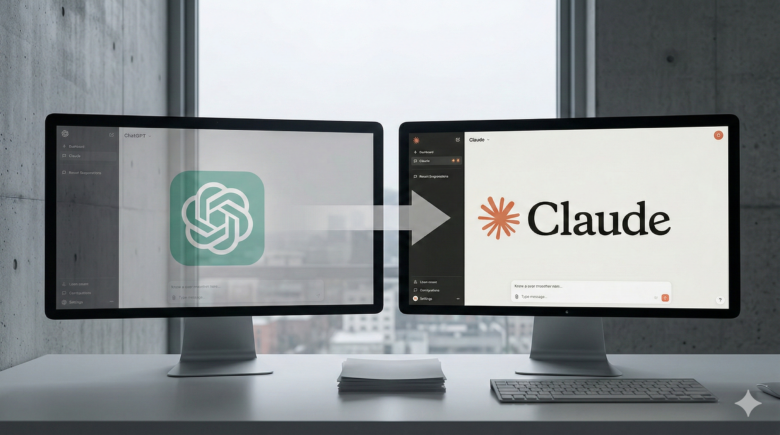
People around the globe are not happy about this. The result: Claude from Anthropic has climbed to number 1 in the app store charts in major markets like the USA, Germany, and Canada and has overtaken ChatGPT – a clear sign that more and more users are switching to Anthropic’s AI chatbot. But how do you switch properly?
Step 1: Export data from ChatGPT
Before deleting the ChatGPT account, there are two things to do. On the one hand, you can export your account details and chats so you can review them later if they contain important information. To do this, follow this path:
Settings → Data controls → Export data
- The data is then sent in a downloadable file to a registered email address
- The download link expires 24 hours after receipt
- Processing can take some time, so you should be patient until you receive the file
You can also take the Memory (what the AI model has stored about your account) with you. To do this, enter the following prompt in ChatGPT (Note: saved memories are only available for ChatGPT Plus and Pro):
I’m moving to another service and need to export my data. List every memory you have stored about me, as well as any context you’ve learned about me from past conversations. Output everything in a single code block so I can easily copy it.
Format each entry as: [date saved, if available] – memory content.
Make sure to cover all of the following — preserve my words verbatim where possible:
– Instructions I’ve given you about how to respond (tone, format, style, ‘always do X’, ‘never do Y’).
– Personal details: name, location, job, family, interests.
– Projects, goals, and recurring topics.
– Tools, languages, and frameworks I use.
– Preferences and corrections I’ve made to your behavior.
– Any other stored context not covered above. Do not summarize, group, or omit any entries.After the code block, confirm whether that is the complete set or if any remain.
You should then receive structured data from ChatGPT that you can use in other chatbots.
Step 2: Bring data to Claude
Anthropic, as a major OpenAI rival, has introduced its own function to make the move from another chatbot to Claude easier. It is important to bring the Memory from ChatGPT to Claude because it is ultimately learned over time and is responsible for personalizing the account.
In general, it is important to know that the Memory function at Anthropic is only available for users with Pro, Max, Team, and Enterprise plans on the web, in Claude Desktop, and in Claude Mobile.
In Claude, under
Capabilities → Import memory from other AI providers → Start import
there is the option to simply transfer the ChatGPT Memory to Claude. In general, Claude remembers
- Role, projects, and professional context
- Communication preferences and work style
- Technical preferences and coding style
- Project details and ongoing work
Claude automatically summarizes conversations and creates a synthesis of the key insights from the chat history (chats in projects are not considered). This synthesis is updated every 24 hours and provides context for each new standalone conversation, according to Anthropic.
Basically, this means that migrating memory from ChatGPT to Claude primarily only makes sense for paid accounts because “Memory” is only supported by these. Here is a comparison of the prices and subscription models of OpenAI and Anthropic. The main differences: Unlike ChatGPT, Claude does not have image and video generation, but is instead more focused on workflows and offers integrations with PowerPoint and Excel:
| Pricing | Features | Advertising | |
| Anthropic | |||
| Free: $0 / €0 | – Generate code and visualize data
– Write, edit, and create content – Analyze text and images – search the web – execute code – desktop extensions – Connect Slack and Google Workspace – Connectors with remote MCP – Extended thinking for complex work |
no | |
| Pro: $20 / €22 | – Everything from Free – Claude Code and Cowork- unlimited projects – Access to Research – Memory across conversations – Ability to use more Claude models – Claude in Excel |
no | |
| Max from $100 / €90 | – 5x to 20x more usage than Pro
– Higher output limits – Early access to new features – Priority access at high traffic times – Claude in PowerPoint |
no | |
| OpenAI | |||
| Free: $0 / €0 | – short chats for common questions
– limited image generation – save limited memories and limited context |
yes | |
| Go: $8 / €8 | – longer chats – more image generation – custom GPTs |
yes | |
| Plus: $20 / €23 | – even longer chats – more and faster image generation- Custom GPTs – Agent Mode |
no | |
| Pro: $200 / €229 | – Access to GPT-5.2 – Better image generation – max. context – Agent Mode – faster Codex – Better Sora – Earl Access to new features |
no |
Step 3: Delete ChatGPT account
Once you have secured your data at ChatGPT and moved, you can then delete the ChatGPT account that is probably no longer needed. This is done very simply via:
Settings → Account → Delete account
- to create a new account, you cannot use the same email address again. This applies not only to ChatGPT, but also to the API services that you use especially in a professional environment
- Data is deleted by OpenAI within 30 days, unless it is legally required or permitted to retain a limited amount of data for longer
- before deleting, you should deactivate your subscriptions in Apple’s App Store or Google’s Play Store to prevent receiving an invoice in the following months
An alternative way to delete an account is via https://privacy.openai.com.